
Starting at Ubuntu Desktop version 26.04 LTS, the stand-alone “Startup Applications” app has itself been removed. But there’s still a GUI-based way to do it.
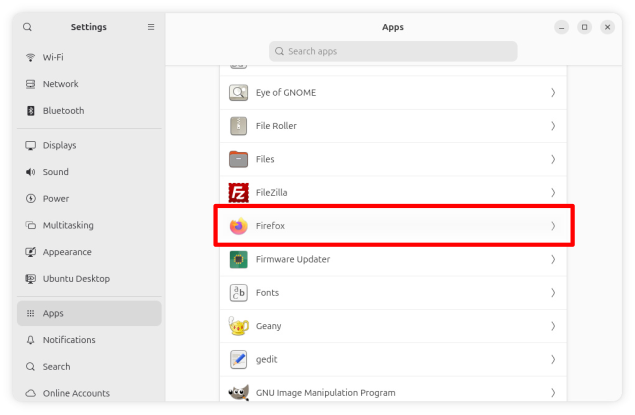
1. Open the Settings, scroll to Apps, and then scroll in the right pane to the application that you want to auto-launch at startup. I’ll use Firefox in this example:
2. Click on the selected app, and you’ll get a page of options which should include an “Autostart” switch, which you can turn on, if it isn’t already on:
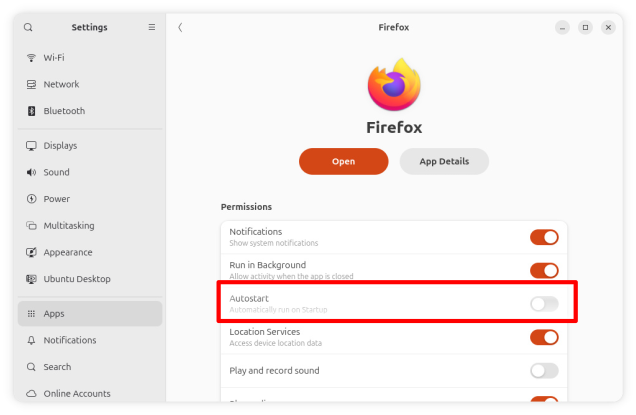
That should do it – Firefox should launch on your next boot. Note that there is a delay of a few seconds before it will launch. That’s no doubt to make sure that the desktop is up and reasonably stable before launching apps.
BTW, but I chose Firefox here because I have a couple of “almost headless” systems, which do nothing but stream music, movies, etc. I like those systems to start with the browser up and ready to go. I have custom webpages set as home pages in the browser, with links to all of my local (Jellyfin!) or favorite media sources.